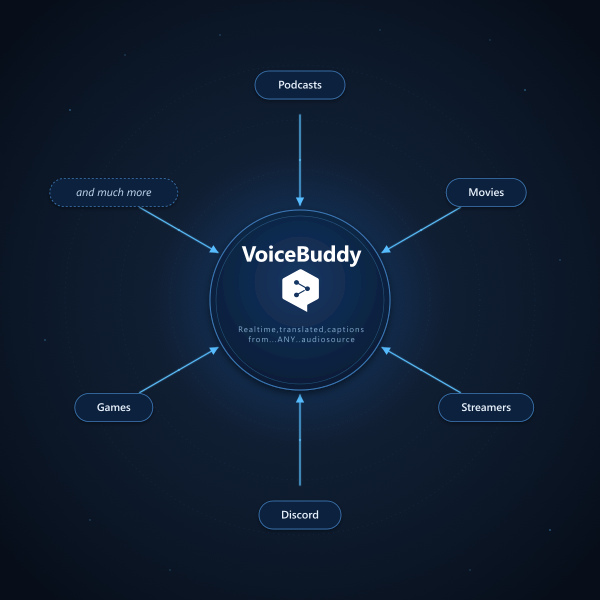
Live translated captions for anything you listen to.
YouTube videos. Twitch streams. Discord calls. Game voice chat. Zoom meetings.
That podcast your friend keeps sending you. If your computer can play it, VoiceBuddy
catches the audio and puts captions on screen in the language you want, while it happens.
Captions the active tab's audio (YouTube, Twitch, Meet, and more)
Subtitle overlay that pins to the video itself
Follows your system light / dark theme
Coming soon
Setup in a few minutes
You'll need a DeepL API Pro key. The Voice API isn't on the Free tier yet.
1
Install via 0install (recommended)
0install handles auto-updates and shares the .NET 10 Desktop Runtime across apps, so updates stay small.
Download VoiceBuddy-Setup.exe from the latest release and run it. Or if you already have 0install:
0install run https://deejaytc.github.io/VoiceBuddy/voice-buddy.xml
2
Or: manual download
Grab voice-buddy-<version>-win-x64.zip, unzip, run VoiceBuddy.exe. Requires the .NET 10 Desktop Runtime.
3
Paste your DeepL API key
Open the Settings tab and paste your DeepL Pro key.
4
Pick a source and start
On the Overview tab, choose an audio source from the Device dropdown. Loopback devices (system audio) show a speaker icon; microphones show a mic icon. Click Start capture and play some audio. Captions appear in the overlay.
1
Install the app
Download the latest VoiceBuddy.app from the releases page and move it into Applications.
2
Grant permissions on first launch
macOS asks for Microphone and Screen Recording. Screen Recording is how ScreenCaptureKit exposes system audio. No video is captured. Approve both in System Settings → Privacy & Security.
3
Paste your DeepL API key
Open Settings and paste your key.
4
Pick a device and start
On the Overview tab, choose an input device and hit Start capture. Use the menu-bar icon to start, stop, or lock the overlay on the fly.
1
Grab the extension
Clone the VoiceBuddy repo or download the latest release zip.
2
Load unpacked
Open chrome://extensions, enable Developer mode, click Load unpacked, and point it at src/VoiceBuddy.Chrome/.
3
Paste your DeepL API key
Click the VoiceBuddy icon in the toolbar, open Settings, and paste your key.
4
Translate a tab
Open a tab with audio (YouTube, Twitch, Meet, Teams web, a podcast, whatever). Open the popup, pick your output language, click Start. Captions show up right on the video.
DeepL API Pro required. The Voice API isn't on the Free tier today. Get a key at deepl.com/pro-api. Your audio is streamed directly to DeepL. Nothing is proxied through a third party.
Make captions look exactly how you want
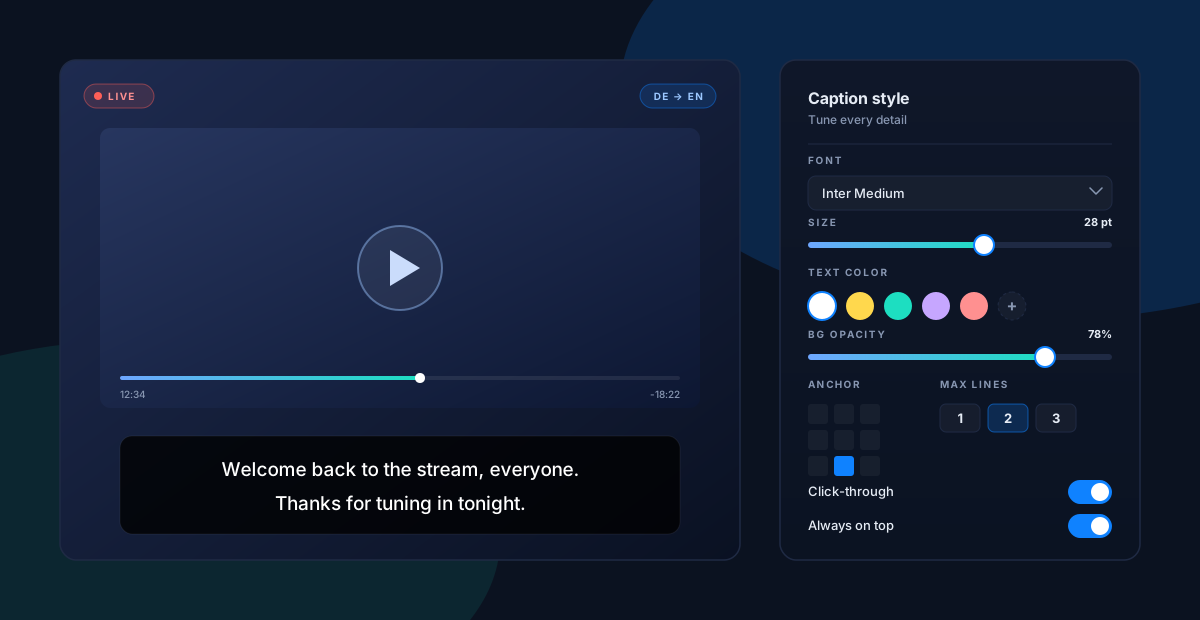
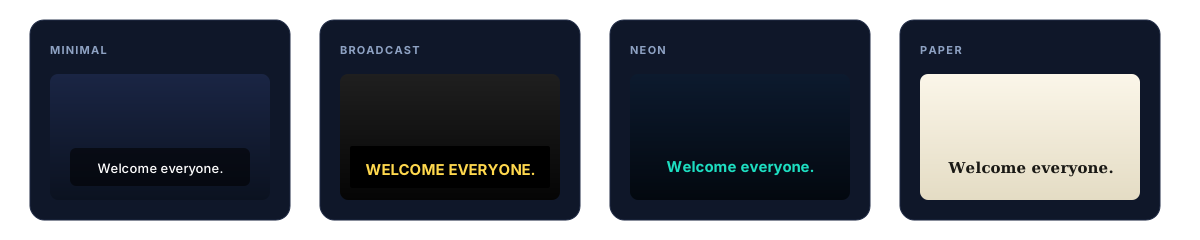
Every knob you'd expect, plus a few you wouldn't. Tune the overlay once and it stays out of the way. Bold yellow for broadcast, minimal white for focus, neon for streaming, serif on cream for a reading mode.
Every detail is yours
Font: any font installed on the system.
Size: from discreet HUD text all the way up to broadcast.
Text colour: any colour, any language pair.
Background opacity: solid slab, frosted, or invisible.
Anchor point: snap to any corner or edge.
Max visible lines: 1 for a ticker, 2 or 3 for full context.
Click-through: let clicks pass to whatever's beneath.
Always on top: captions stay visible over fullscreen apps.
Pinned wherever you want
Drag the overlay to any corner of the screen and lock it there. Turn on click-through and it stops getting in the way of your game, your stream, or whatever you're doing.
Welcome back to the stream, everyone.
Thanks for tuning in tonight.
Preset-ready
Start from a preset, tweak to taste. Your settings JSON copies cleanly across machines.
Settings follow the JSON schema. Find the file at %AppData%\VoiceBuddy\settings.json on Windows or ~/Library/Application Support/VoiceBuddy/settings.json on macOS. Copy it between machines to keep one consistent look everywhere.
Stream in one language. Reach people in every other one.
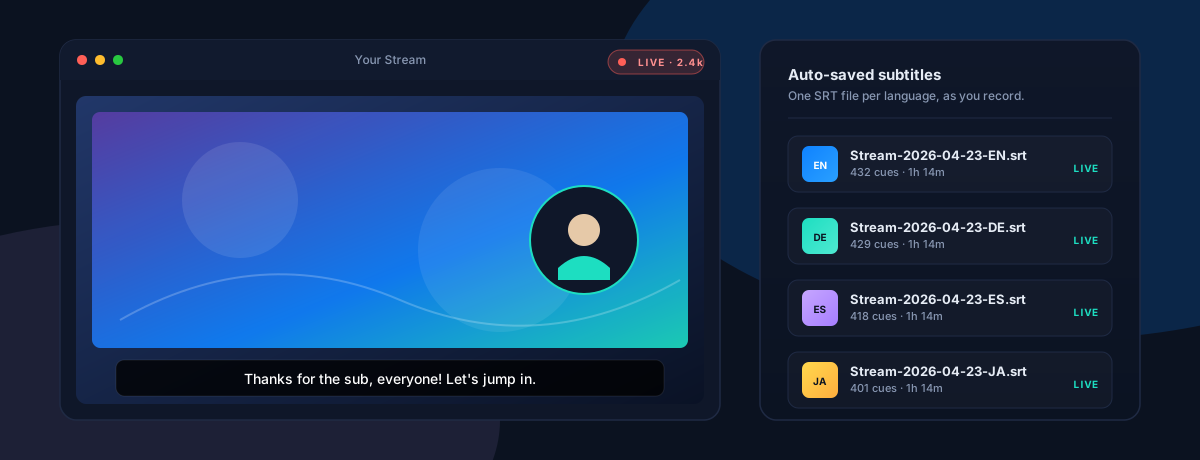
VoiceBuddy sits right next to OBS, Streamlabs, or whatever you use. It picks up your mic or your game audio, puts translated captions on screen for your viewers, and quietly saves clean subtitle files while you record. No scripts, no extra tools.
Captions your viewers can read
Drop the caption overlay onto your scene. Your audience sees what's being said in their language, while you keep streaming in yours.
SRT files, saved as you go
Pick a folder, pick your languages, hit record. VoiceBuddy writes one neat .srt file per language, ready to drop into your editor.
Safe if things go sideways
Mid-stream crash? No problem. The subtitle file you were writing to is already on disk. Finish the session and it cleans itself up.
How it looks on stream day
1
Point VoiceBuddy at your audio
Your mic, your game, your guests on Discord, the browser tab with the trailer you're reacting to. Whatever makes sound.
2
Pick your languages
Choose the ones your audience reads in. English, German, Japanese, Spanish, pick a handful and it captions all of them at once.
3
Drop the overlay on your scene
In OBS, Streamlabs, XSplit, whatever. Window-capture the caption overlay, slide it where you want it, done.
4
Walk away with SRT files
Every session leaves behind clean subtitle files in the folder you picked. Upload them alongside your VOD or drop them straight into your editor.
Good to know
Limits, settings, and common gotchas.
What are the session limits?
30-second inactivity timeout. If no audio reaches DeepL for 30 seconds, the server closes the session. The desktop apps surface this as a status message. Just restart capture.
1-hour session cap on the DeepL side. No auto-reconnect yet; restart capture when it hits.
Chrome: browser-managed chrome.storage.local, per profile
Desktop settings share the same JSON schema, so you can copy one across machines. API keys live in plaintext in a user-scoped directory, so don't commit the file. Delete it to reset to defaults.
Why is SmartScreen / Gatekeeper complaining?
Binaries are unsigned until the project is code-signed and notarised. First launch will warn on both Windows and macOS. On Windows, click More info → Run anyway; on macOS, right-click the app and choose Open.
Can the Chrome extension capture non-browser audio?
No. Extensions only see the active tab. For system-wide audio (desktop apps, games, Zoom clients) use the Windows or macOS app.
Is my audio private?
VoiceBuddy streams audio directly from your machine to DeepL's servers using your own DeepL Pro key. Nothing is proxied through a third-party relay. DeepL's own terms apply to what happens on their side.
Building from source?
Windows: project files under src/VoiceBuddy.App/. Requires .NET 10 SDK. dotnet build / dotnet run --project src/VoiceBuddy.App.
macOS: see src/mac/VoiceBuddy/README.md. Requires Xcode 15+ and xcodegen.
Chrome: see src/VoiceBuddy.Chrome/README.md. Load unpacked. No build step, no bundler.